---
title: Installation
description: "Learn how to create a new Next.js application with the `create-next-app` CLI, and set up TypeScript, ESLint, and Module Path Aliases."
url: "https://nextjs.org/docs/15/app/getting-started/installation"
docs_index: /docs/15/llms.txt
lastUpdated: 2025-10-10
prerequisites:
- "Getting Started: /docs/15/app/getting-started"
---
> For an index of all documentation, see [/docs/15/llms.txt](/docs/15/llms.txt).
Create a new Next.js app and run it locally.
## Quick start
1. Create a new Next.js app named `my-app`
2. `cd my-app` and start the dev server.
3. Visit `http://localhost:3000`.
```bash
pnpm create next-app@latest my-app --yes
cd my-app
pnpm dev
```
```bash
npx create-next-app@latest my-app --yes
cd my-app
npm run dev
```
```bash
yarn create next-app@latest my-app --yes
cd my-app
yarn dev
```
```bash
bun create next-app@latest my-app --yes
cd my-app
bun dev
```
- `--yes` skips prompts using saved preferences or defaults. The default setup enables TypeScript, Tailwind, App Router, and Turbopack, with import alias `@/*`.
## System requirements
Before you begin, make sure your system meets the following requirements:
- [Node.js 18.18](https://nodejs.org/) or later.
- macOS, Windows (including WSL), or Linux.
## Create with the CLI
The quickest way to create a new Next.js app is using [`create-next-app`](/docs/app/api-reference/cli/create-next-app), which sets up everything automatically for you. To create a project, run:
```bash title="Terminal"
npx create-next-app@latest
```
On installation, you'll see the following prompts:
```txt title="Terminal"
What is your project named? my-app
Would you like to use TypeScript? No / Yes
Would you like to use ESLint? No / Yes
Would you like to use Tailwind CSS? No / Yes
Would you like your code inside a `src/` directory? No / Yes
Would you like to use App Router? (recommended) No / Yes
Would you like to use Turbopack? (recommended) No / Yes
Would you like to customize the import alias (`@/*` by default)? No / Yes
What import alias would you like configured? @/*
```
After the prompts, [`create-next-app`](/docs/app/api-reference/cli/create-next-app) will create a folder with your project name and install the required dependencies.
## Manual installation
To manually create a new Next.js app, install the required packages:
```bash
pnpm i next@latest react@latest react-dom@latest
```
```bash
npm i next@latest react@latest react-dom@latest
```
```bash
yarn add next@latest react@latest react-dom@latest
```
```bash
bun add next@latest react@latest react-dom@latest
```
> **Good to know:**
>
> The App Router uses [React canary releases](https://react.dev/blog/2023/05/03/react-canaries) built-in, which include all the stable React 19 changes, as well as newer features being validated in frameworks. The Pages Router uses the React version you install in `package.json`.
Then, add the following scripts to your `package.json` file:
```json title="package.json"
{
"scripts": {
"dev": "next dev --turbopack",
"build": "next build",
"start": "next start",
"lint": "eslint"
}
}
```
These scripts refer to the different stages of developing an application:
- `next dev --turbopack`: Starts the development server using Turbopack.
- `next build`: Builds the application for production.
- `next start`: Starts the production server.
- `eslint`: Runs ESLint.
Turbopack is stable for `dev`. For production builds, Turbopack is in beta. To try it, run `next build --turbopack`. See the [Turbopack docs](/docs/app/api-reference/turbopack) for status and caveats.
### Create the `app` directory
Next.js uses file-system routing, which means the routes in your application are determined by how you structure your files.
Create an `app` folder. Then, inside `app`, create a `layout.tsx` file. This file is the [root layout](/docs/app/api-reference/file-conventions/layout#root-layout). It's required and must contain the `` and `` tags.
```tsx title="app/layout.tsx"
export default function RootLayout({
children,
}: {
children: React.ReactNode
}) {
return (
{children}
)
}
```
```jsx title="app/layout.js"
export default function RootLayout({ children }) {
return (
{children}
)
}
```
Create a home page `app/page.tsx` with some initial content:
```tsx title="app/page.tsx"
export default function Page() {
return Hello, Next.js!
}
```
```jsx title="app/page.js"
export default function Page() {
return Hello, Next.js!
}
```
Both `layout.tsx` and `page.tsx` will be rendered when the user visits the root of your application (`/`).

> **Good to know:**
>
> - If you forget to create the root layout, Next.js will automatically create this file when running the development server with `next dev`.
> - You can optionally use a [`src` folder](/docs/app/api-reference/file-conventions/src-folder) in the root of your project to separate your application's code from configuration files.
### Create the `public` folder (optional)
Create a [`public` folder](/docs/app/api-reference/file-conventions/public-folder) at the root of your project to store static assets such as images, fonts, etc. Files inside `public` can then be referenced by your code starting from the base URL (`/`).
You can then reference these assets using the root path (`/`). For example, `public/profile.png` can be referenced as `/profile.png`:
```tsx highlight={4} title="app/page.tsx"
import Image from 'next/image'
export default function Page() {
return
}
```
```jsx highlight={4} title="app/page.js"
import Image from 'next/image'
export default function Page() {
return
}
```
## Run the development server
1. Run `npm run dev` to start the development server.
2. Visit `http://localhost:3000` to view your application.
3. Edit the `app/page.tsx` file and save it to see the updated result in your browser.
## Set up TypeScript
> Minimum TypeScript version: `v4.5.2`
Next.js comes with built-in TypeScript support. To add TypeScript to your project, rename a file to `.ts` / `.tsx` and run `next dev`. Next.js will automatically install the necessary dependencies and add a `tsconfig.json` file with the recommended config options.
### IDE Plugin
Next.js includes a custom TypeScript plugin and type checker, which VSCode and other code editors can use for advanced type-checking and auto-completion.
You can enable the plugin in VS Code by:
1. Opening the command palette (`Ctrl/⌘` + `Shift` + `P`)
2. Searching for "TypeScript: Select TypeScript Version"
3. Selecting "Use Workspace Version"
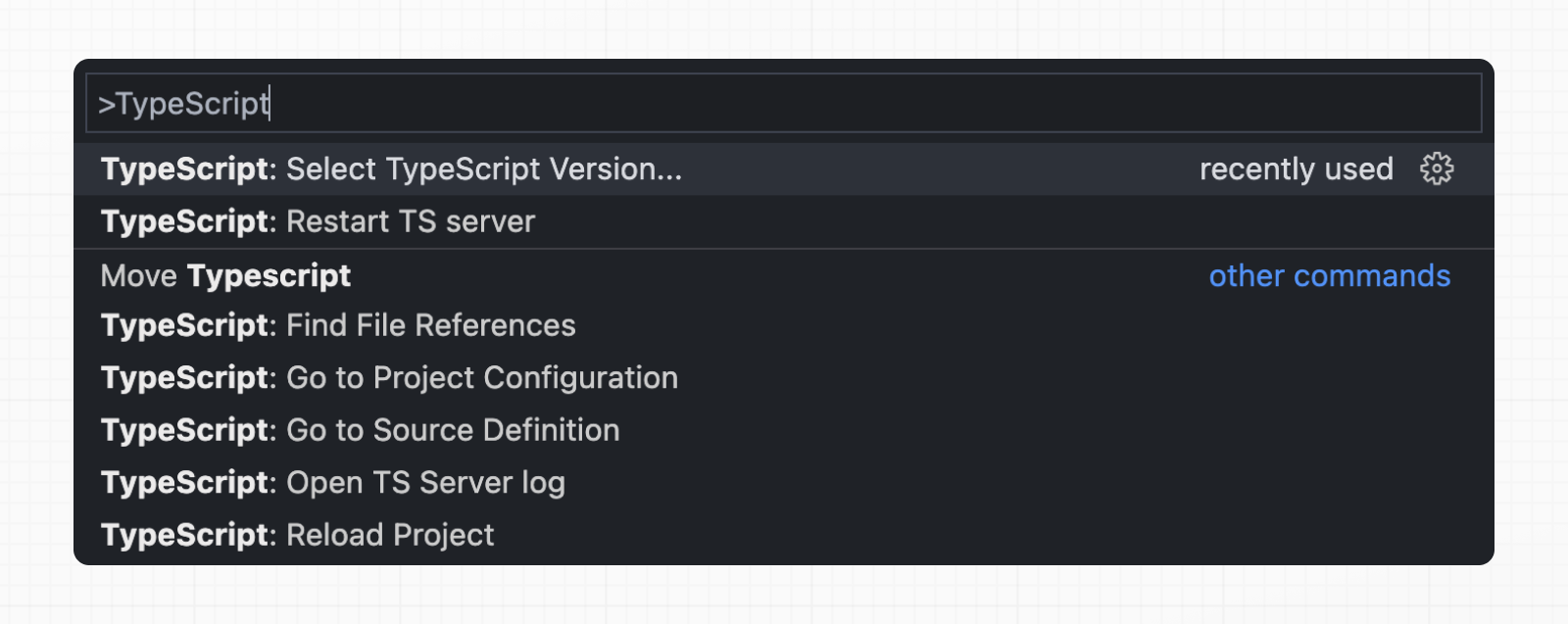
See the [TypeScript reference](/docs/app/api-reference/config/next-config-js/typescript) page for more information.
## Set up ESLint
Next.js comes with built-in ESLint. It automatically installs the necessary packages and configures the proper settings when you create a new project with `create-next-app`.
To manually add ESLint to an existing project, add `next lint` as a script to `package.json`:
```json title="package.json"
{
"scripts": {
"lint": "next lint"
}
}
```
Then, run `npm run lint` and you will be guided through the installation and configuration process.
```bash title="Terminal"
npm run lint
```
You'll see a prompt like this:
> ? How would you like to configure ESLint?
>
> ❯ Strict (recommended)
> Base
> Cancel
- **Strict**: Includes Next.js' base ESLint configuration along with a stricter Core Web Vitals rule-set. This is the recommended configuration for developers setting up ESLint for the first time.
- **Base**: Includes Next.js' base ESLint configuration.
- **Cancel**: Skip configuration. Select this option if you plan on setting up your own custom ESLint configuration.
If `Strict` or `Base` are selected, Next.js will automatically install `eslint` and `eslint-config-next` as dependencies in your application and create a configuration file in the root of your project.
The ESLint config generated by `next lint` uses the older `.eslintrc.json` format. ESLint supports both [the legacy `.eslintrc.json` and the newer `eslint.config.mjs` format](https://eslint.org/docs/latest/use/configure/configuration-files#configuring-eslint).
You can manually replace `.eslintrc.json` with an `eslint.config.mjs` file using the setup recommended in our [ESLint API reference](/docs/app/api-reference/config/eslint#with-core-web-vitals), and installing the [`@eslint/eslintrc`](https://www.npmjs.com/package/@eslint/eslintrc) package. This more closely matches the ESLint setup used by `create-next-app`.
You can now run `next lint` every time you want to run ESLint to catch errors. Once ESLint has been set up, it will also automatically run during every build (`next build`). Errors will fail the build, while warnings will not.
See the [ESLint Plugin](/docs/app/api-reference/config/next-config-js/eslint) page for more information.
## Set up Absolute Imports and Module Path Aliases
Next.js has in-built support for the `"paths"` and `"baseUrl"` options of `tsconfig.json` and `jsconfig.json` files.
These options allow you to alias project directories to absolute paths, making it easier and cleaner to import modules. For example:
```jsx
// Before
import { Button } from '../../../components/button'
// After
import { Button } from '@/components/button'
```
To configure absolute imports, add the `baseUrl` configuration option to your `tsconfig.json` or `jsconfig.json` file. For example:
```json title="tsconfig.json or jsconfig.json"
{
"compilerOptions": {
"baseUrl": "src/"
}
}
```
In addition to configuring the `baseUrl` path, you can use the `"paths"` option to `"alias"` module paths.
For example, the following configuration maps `@/components/*` to `components/*`:
```json title="tsconfig.json or jsconfig.json"
{
"compilerOptions": {
"baseUrl": "src/",
"paths": {
"@/styles/*": ["styles/*"],
"@/components/*": ["components/*"]
}
}
}
```
Each of the `"paths"` are relative to the `baseUrl` location.
---
For a semantic overview of all documentation, see [/sitemap.md](/sitemap.md)
For an index of all available documentation, see [/docs/15/llms.txt](/docs/15/llms.txt)