)
}
```
#### Checking Active Links
You can use [`usePathname()`](/docs/app/api-reference/functions/use-pathname) to determine if a link is active. For example, to add a class to the active link, you can check if the current `pathname` matches the `href` of the link:
**TypeScript**
```tsx title="app/components/links.tsx"
'use client'
import { usePathname } from 'next/navigation'
import Link from 'next/link'
export function Links() {
const pathname = usePathname()
return (
)
}
```
**JavaScript**
```jsx title="app/components/links.js"
'use client'
import { usePathname } from 'next/navigation'
import Link from 'next/link'
export function Links() {
const pathname = usePathname()
return (
)
}
```
#### Scrolling to an `id`
The default behavior of the Next.js App Router is to scroll to the top of a new route or to maintain the scroll position for backwards and forwards navigation.
If you'd like to scroll to a specific `id` on navigation, you can append your URL with a `#` hash link or just pass a hash link to the `href` prop. This is possible since `` renders to an `` element.
```jsx
Settings
// Output
Settings
```
#### Disabling scroll restoration
The default behavior of the Next.js App Router is to scroll to the top of a new route or to maintain the scroll position for backwards and forwards navigation. If you'd like to disable this behavior, you can pass `scroll={false}` to the `` component, or `scroll: false` to `router.push()` or `router.replace()`.
```jsx
// next/link
Dashboard
```
```jsx
// useRouter
import { useRouter } from 'next/navigation'
const router = useRouter()
router.push('/dashboard', { scroll: false })
```
## `useRouter()` Hook
The `useRouter` hook allows you to programmatically change routes from Client Components. For Server Components, you would [`redirect()`](/docs/app/api-reference/functions/redirect) instead.
```jsx title="app/page.js"
'use client'
import { useRouter } from 'next/navigation'
export default function Page() {
const router = useRouter()
return (
)
}
```
For a full list of `useRouter` methods, see the [API reference](/docs/app/api-reference/functions/use-router).
> **Recommendation:**
>
> Use the `` component to navigate between routes unless you have a specific requirement for using `useRouter`.
## Using the native History API
Next.js allows you to use the native [`window.history.pushState`](https://developer.mozilla.org/en-US/docs/Web/API/History/pushState) and [`window.history.replaceState`](https://developer.mozilla.org/en-US/docs/Web/API/History/replaceState) methods to update the browser's history stack without reloading the page.
`pushState` and `replaceState` calls integrate into the Next.js Router, allowing you to sync with [`usePathname`](/docs/app/api-reference/functions/use-pathname) and [`useSearchParams`](/docs/app/api-reference/functions/use-search-params).
### `window.history.pushState`
Use it to add a new entry to the browser's history stack. The user can navigate back to the previous state. For example, to sort a list of products:
**TypeScript**
```tsx title="app/ui/sort-products.tsx"
'use client'
import { useSearchParams } from 'next/navigation'
export default function SortProducts() {
const searchParams = useSearchParams()
function updateSorting(sortOrder: string) {
const params = new URLSearchParams(searchParams.toString())
params.set('sort', sortOrder)
window.history.pushState(null, '', `?${params.toString()}`)
}
return (
<>
)
}
```
**JavaScript**
```jsx title="app/ui/sort-products.js"
'use client'
import { useSearchParams } from 'next/navigation'
export default function SortProducts() {
const searchParams = useSearchParams()
function updateSorting(sortOrder) {
const params = new URLSearchParams(searchParams.toString())
params.set('sort', sortOrder)
window.history.pushState(null, '', `?${params.toString()}`)
}
return (
<>
)
}
```
### `window.history.replaceState`
Use it to replace the current entry on the browser's history stack. The user is not able to navigate back to the previous state. For example, to switch the application's locale:
**TypeScript**
```tsx title="app/ui/locale-switcher.tsx"
'use client'
import { usePathname } from 'next/navigation'
export function LocaleSwitcher() {
const pathname = usePathname()
function switchLocale(locale: string) {
// e.g. '/en/about' or '/fr/contact'
const newPath = `/${locale}${pathname}`
window.history.replaceState(null, '', newPath)
}
return (
<>
)
}
```
**JavaScript**
```jsx title="app/ui/locale-switcher.js"
'use client'
import { usePathname } from 'next/navigation'
export function LocaleSwitcher() {
const pathname = usePathname()
function switchLocale(locale) {
// e.g. '/en/about' or '/fr/contact'
const newPath = `/${locale}${pathname}`
window.history.replaceState(null, '', newPath)
}
return (
<>
)
}
```
## How Routing and Navigation Works
The App Router uses a hybrid approach for routing and navigation. On the server, your application code is automatically [code-split](#1-code-splitting) by route segments. And on the client, Next.js [prefetches](#2-prefetching) and [caches](#3-caching) the route segments. This means, when a user navigates to a new route, the browser doesn't reload the page, and only the route segments that change re-render - improving the navigation experience and performance.
### 1. Code Splitting
Code splitting allows you to split your application code into smaller bundles to be downloaded and executed by the browser. This reduces the amount of data transferred and execution time for each request, leading to improved performance.
Server Components allow your application code to be automatically code-split by route segments. This means only the code needed for the current route is loaded on navigation.
### 2. Prefetching
Prefetching is a way to preload a route in the background before the user visits it.
There are two ways routes are prefetched in Next.js:
- **`` component**: Routes are automatically prefetched as they become visible in the user's viewport. Prefetching happens when the page first loads or when it comes into view through scrolling.
- **`router.prefetch()`**: The `useRouter` hook can be used to prefetch routes programmatically.
The``'s prefetching behavior is different for static and dynamic routes:
- [**Static Routes**](/docs/app/building-your-application/rendering/server-components#static-rendering-default): `prefetch` defaults to `true`. The entire route is prefetched and cached.
- [**Dynamic Routes**](/docs/app/building-your-application/rendering/server-components#dynamic-rendering): `prefetch` default to automatic. Only the shared layout, down the rendered "tree" of components until the first `loading.js` file, is prefetched and cached for `30s`. This reduces the cost of fetching an entire dynamic route, and it means you can show an [instant loading state](/docs/app/building-your-application/routing/loading-ui-and-streaming#instant-loading-states) for better visual feedback to users.
You can disable prefetching by setting the `prefetch` prop to `false`.
See the [`` API reference](/docs/app/api-reference/components/link) for more information.
> **Good to know:**
>
> - Prefetching is not enabled in development, only in production.
### 3. Caching
Next.js has an **in-memory client-side cache** called the [Router Cache](/docs/app/building-your-application/data-fetching/fetching-caching-and-revalidating#caching-data#router-cache). As users navigate around the app, the React Server Component Payload of [prefetched](#2-prefetching) route segments and visited routes are stored in the cache.
This means on navigation, the cache is reused as much as possible, instead of making a new request to the server - improving performance by reducing the number of requests and data transferred.
Learn more about how the [Router Cache](/docs/app/building-your-application/data-fetching/fetching-caching-and-revalidating#caching-data) works and how to configure it.
### 4. Partial Rendering
Partial rendering means only the route segments that change on navigation re-render on the client, and any shared segments are preserved.
For example, when navigating between two sibling routes, `/dashboard/settings` and `/dashboard/analytics`, the `settings` and `analytics` pages will be rendered, and the shared `dashboard` layout will be preserved.
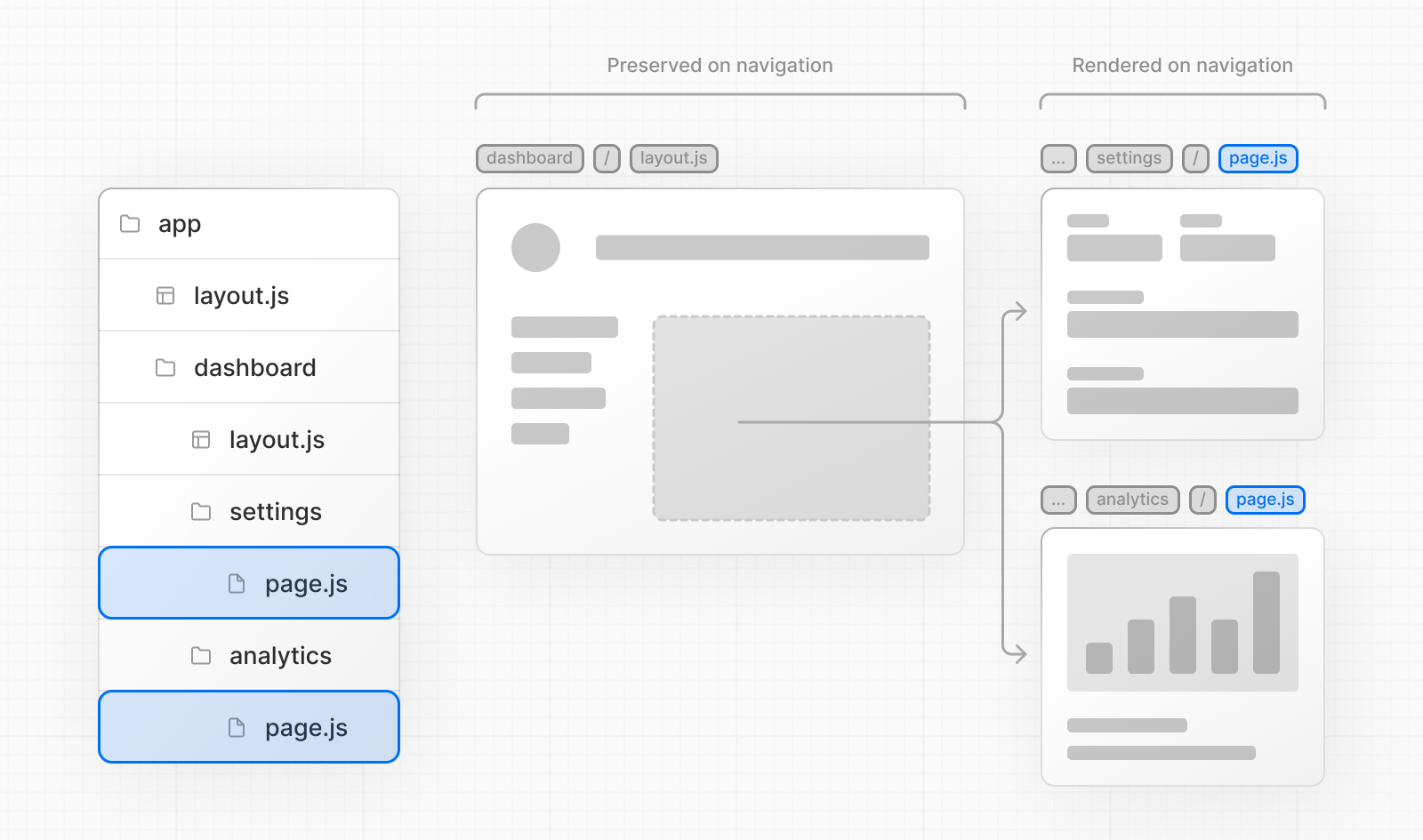
Without partial rendering, each navigation would cause the full page to re-render on the client. Rendering only the segment that changes reduces the amount of data transferred and execution time, leading to improved performance.
### 5. Soft Navigation
Browsers perform a "hard navigation" when navigating between pages. The Next.js App Router enables "soft navigation" between pages, ensuring only the route segments that have changed are re-rendered (partial rendering). This enables client React state to be preserved during navigation.
### 6. Back and Forward Navigation
By default, Next.js will maintain the scroll position for backwards and forwards navigation, and re-use route segments in the [Router Cache](/docs/app/building-your-application/data-fetching/fetching-caching-and-revalidating#caching-data).
### 7. Routing between `pages/` and `app/`
When incrementally migrating from `pages/` to `app/`, the Next.js router will automatically handle hard navigation between the two. To detect transitions from `pages/` to `app/`, there is a client router filter that leverages probabilistic checking of app routes, which can occasionally result in false positives. By default, such occurrences should be very rare, as we configure the false positive likelihood to be 0.01%. This likelihood can be customized via the `experimental.clientRouterFilterAllowedRate` option in `next.config.js`. It's important to note that lowering the false positive rate will increase the size of the generated filter in the client bundle.
Alternatively, if you prefer to disable this handling completely and manage the routing between `pages/` and `app/` manually, you can set `experimental.clientRouterFilter` to false in `next.config.js`. When this feature is disabled, any dynamic routes in pages that overlap with app routes won't be navigated to properly by default.
- [Caching](/docs/14/app/building-your-application/caching): An overview of caching mechanisms in Next.js.
- [TypeScript](/docs/14/app/building-your-application/configuring/typescript): Next.js provides a TypeScript-first development experience for building your React application.
---
For a semantic overview of all documentation, see [/sitemap.md](/sitemap.md)
For an index of all available documentation, see [/docs/14/llms.txt](/docs/14/llms.txt)